Make App Store screenshots
Record the real app, dress it, export it. No design file, no mockup pack, no round trip through a browser.
Store artwork usually means dragging a screenshot into a design file, finding a device frame that matches this year's phone, and fighting a gradient. Kiruna records the device itself and dresses the shot in the same window, then hands you a PNG or a video.
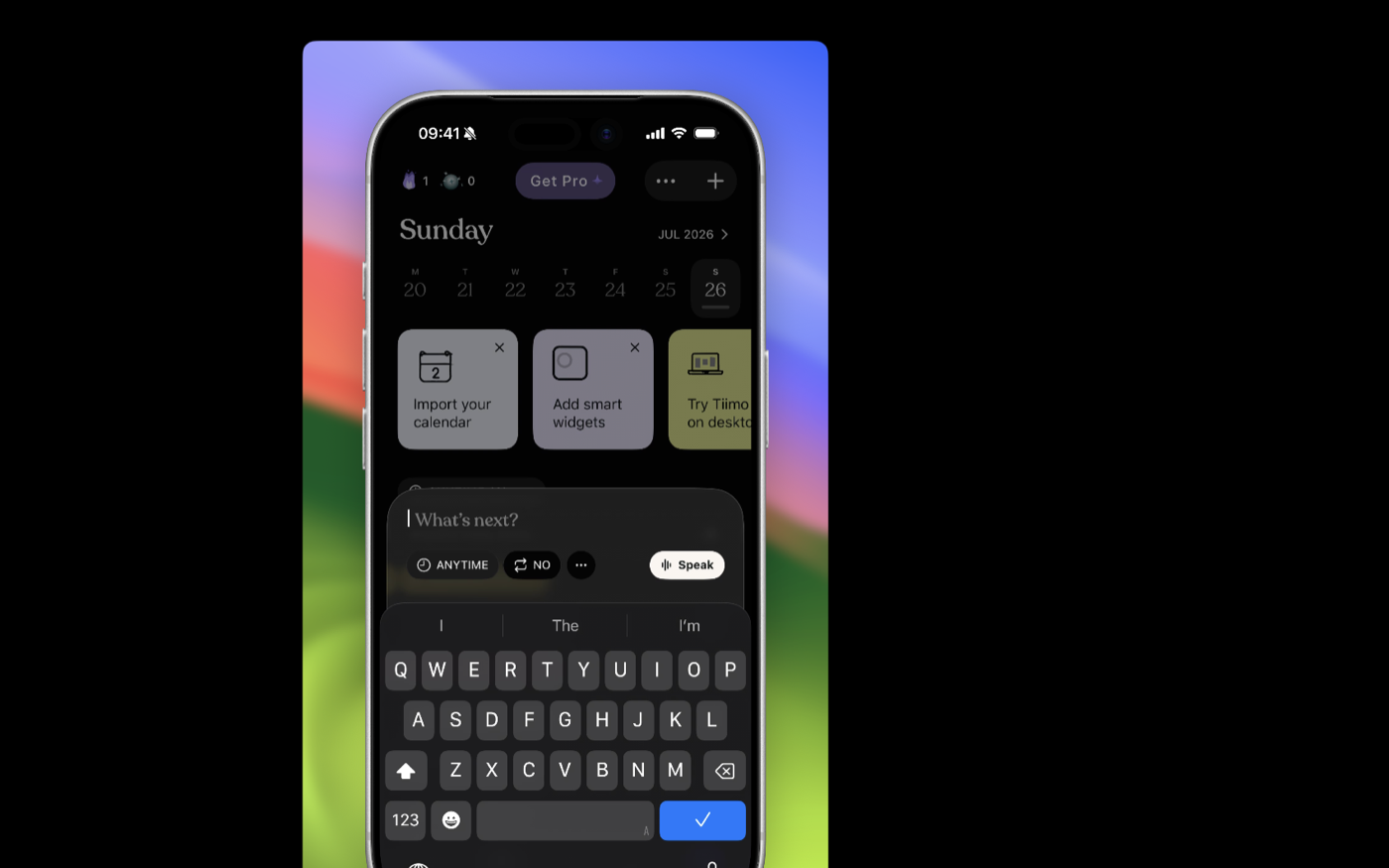
Capture the app, not a mockup
Plug in an iPhone and record it, or drop a screenshot straight onto Kiruna. Portrait takes get the device frame on their own, so you are not hunting for a mockup file.
Put it on your own colour
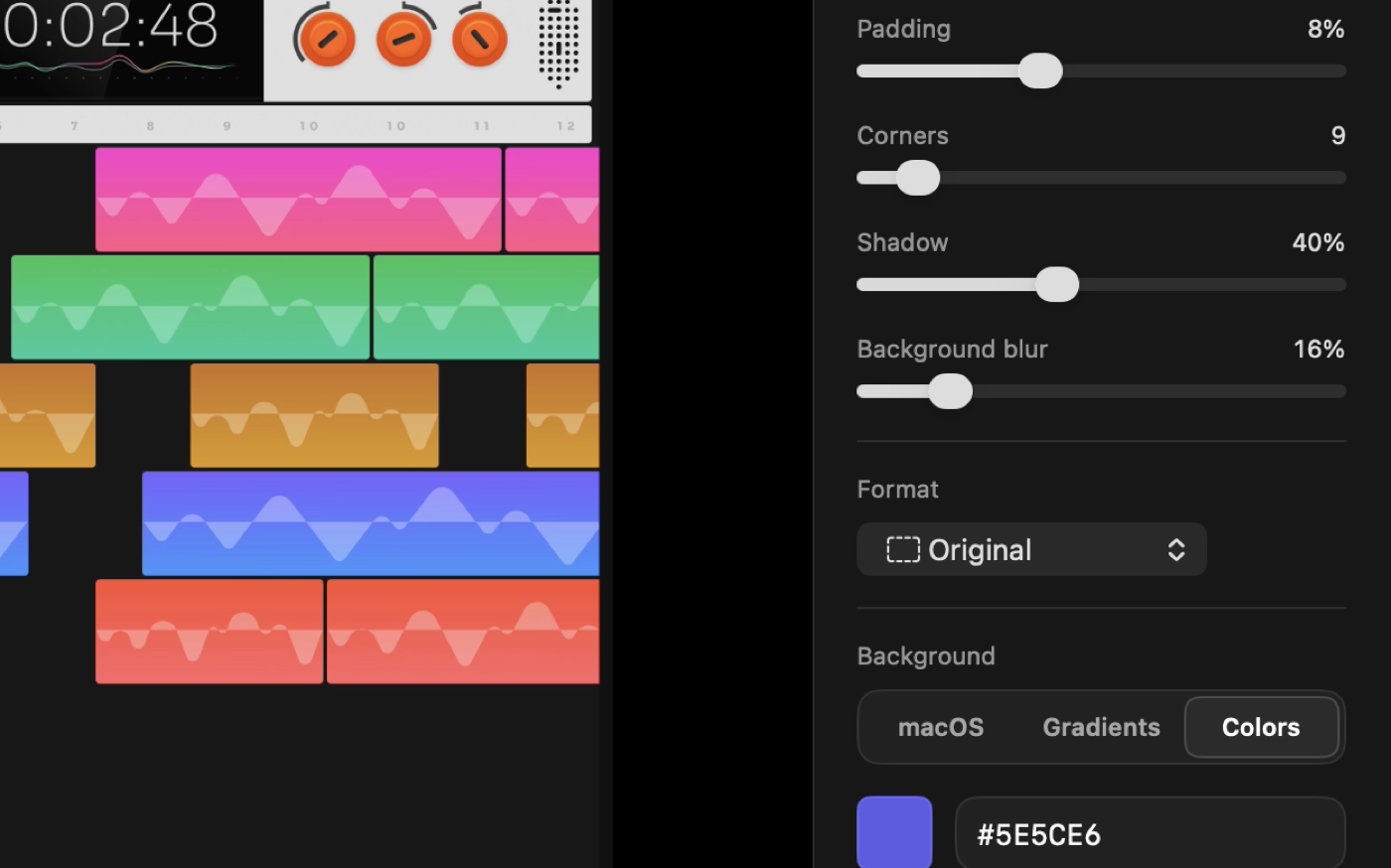
Pick a macOS wallpaper, a gradient, or type your brand colour as a hex value, then set padding, corner radius, shadow and blur until the frame sits the way you want it.
Export the still at 3x
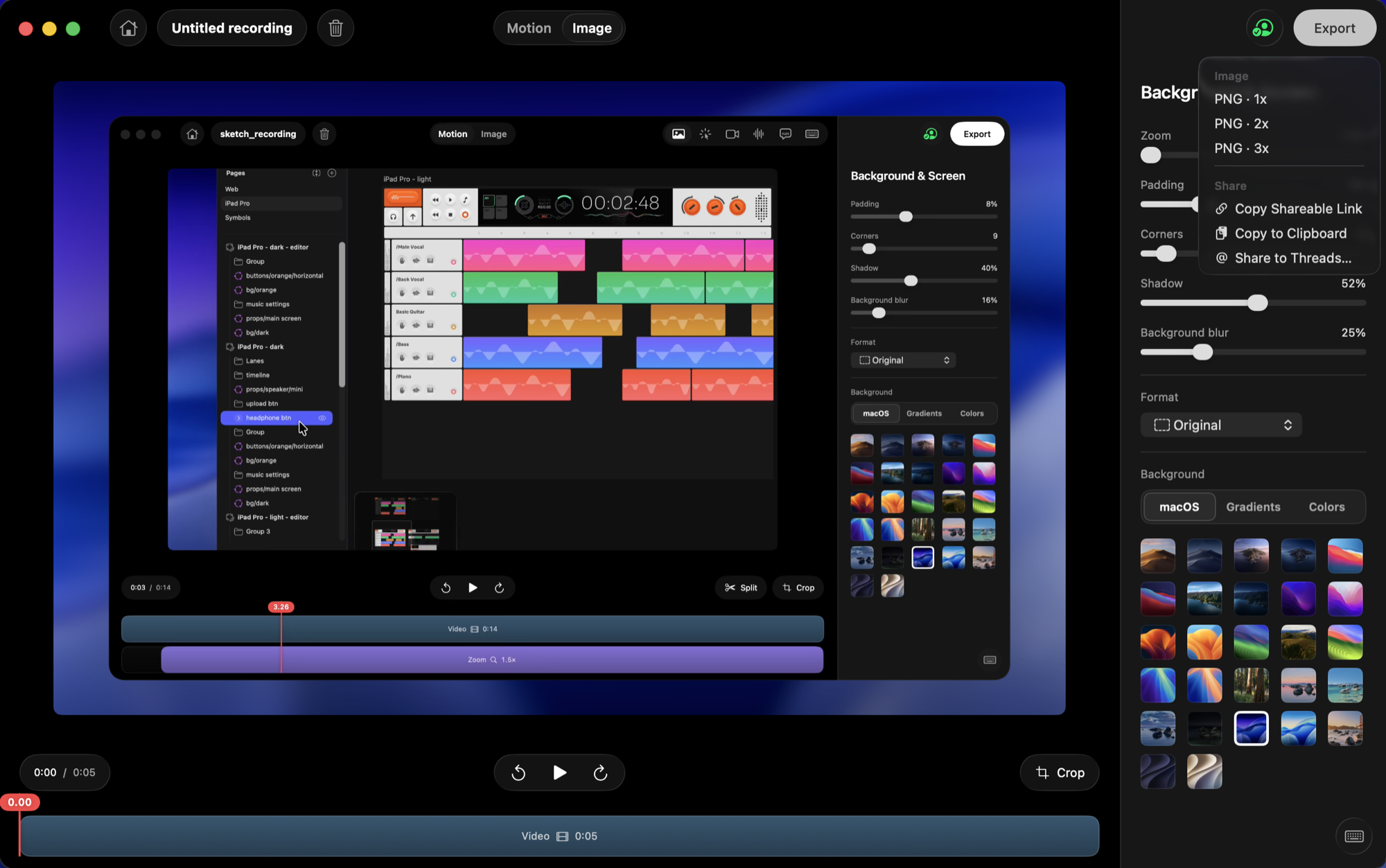
Image mode exports a PNG at 1x, 2x or 3x, so the artwork holds up on a large device page. Copy it to the clipboard instead if it is going straight into a doc.
Or ship a preview video, at the exact size
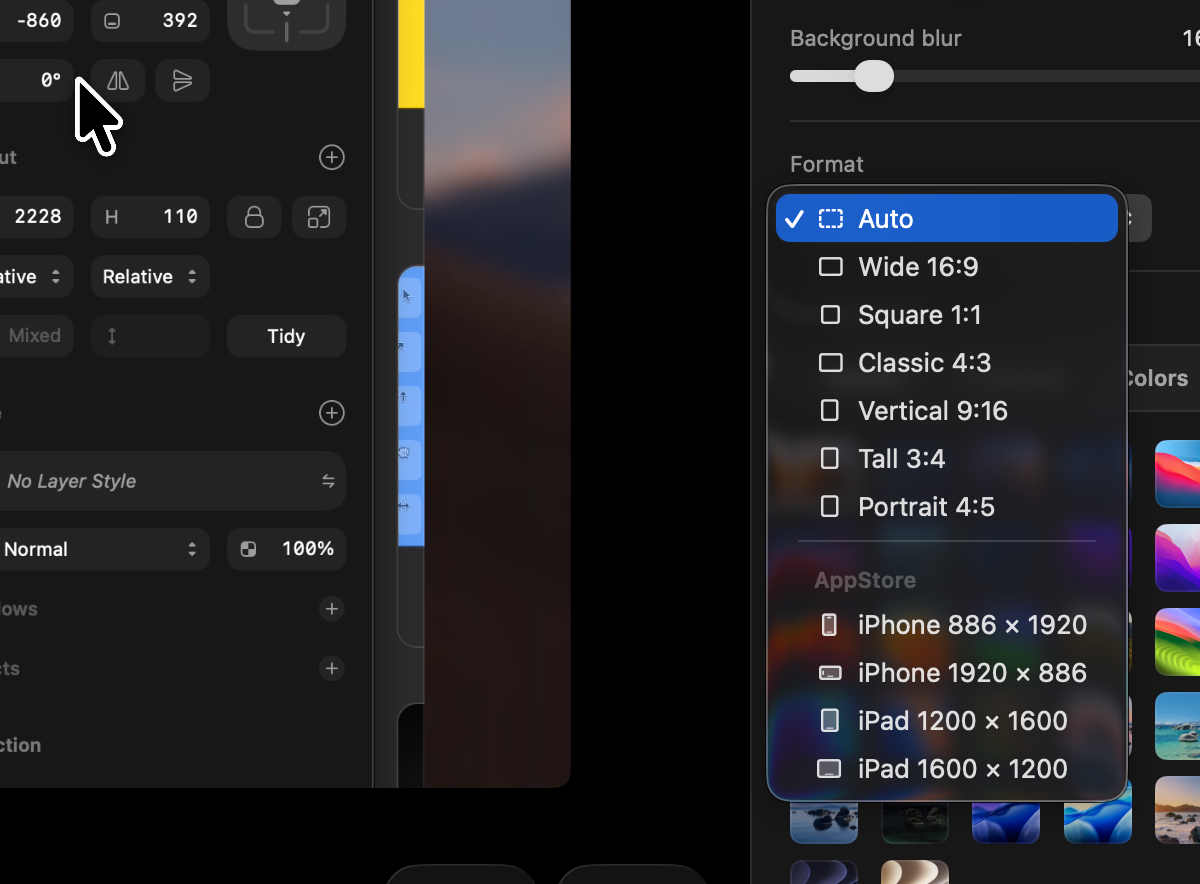
Pick an App Store size in the format picker and the canvas reframes to it, so a preview uploads instead of coming back rejected. The automatic zoom is already in the take.
What Kiruna does not do
The App Store presets cover preview videos: iPhone 886 by 1920 and 1920 by 886, iPad 1200 by 1600 and 1600 by 1200. Still screenshots are a different set of dimensions, and there is no preset for those, so you pick a shape, export at 3x, and size the file to whatever the current upload rules ask for. Kiruna also does not write your captions or upload anything for you.
Try it on your own app
Record one screen, put it on a colour, and see whether it beats what you have now.